About Normcore Password Template
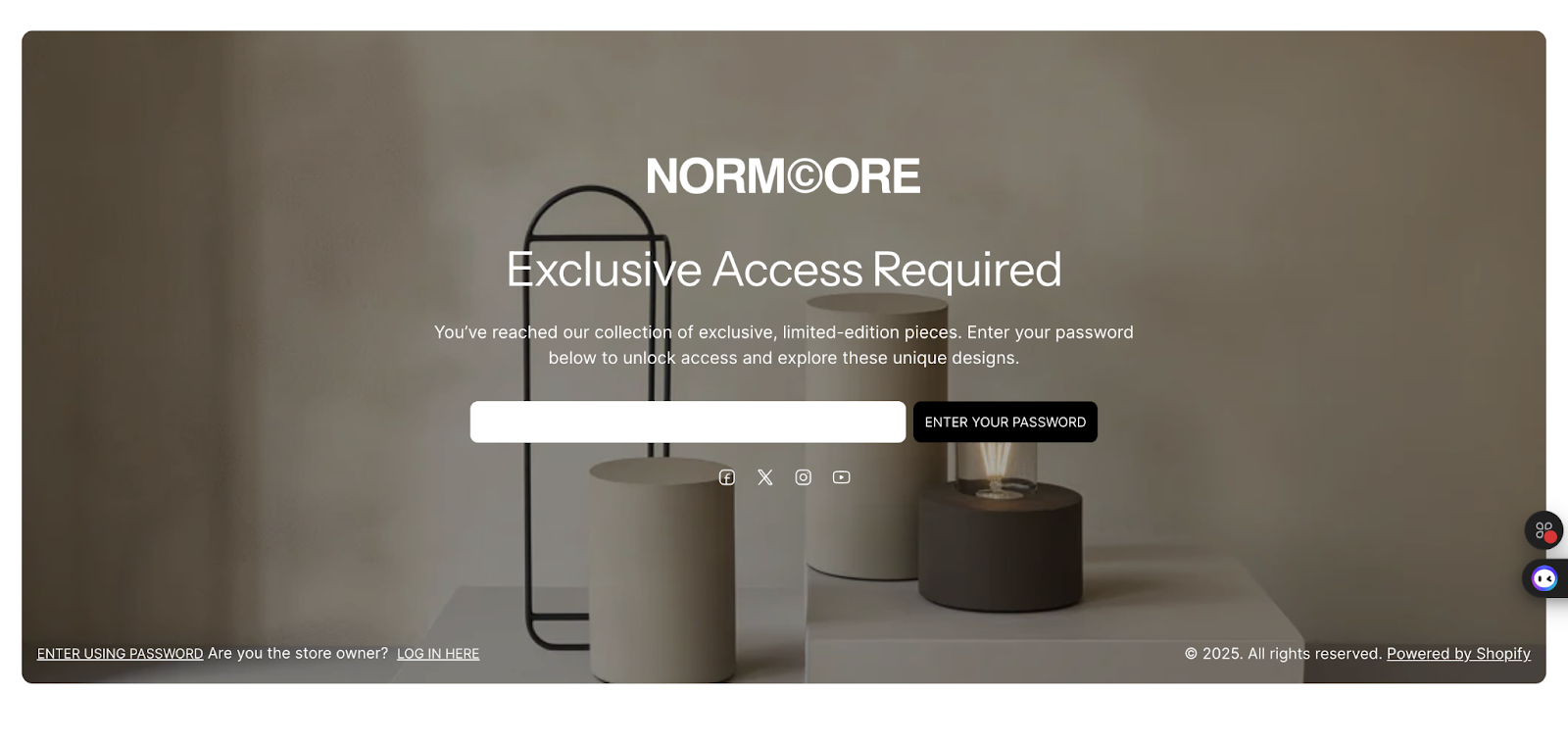
The Normcore Password template is an essential security feature for your online store that creates a protected page accessible only with a password. This template is ideal for:
Pre-launch landing pages
Private collections or products
Members-only content
Beta testing environments
Exclusive access areas
The template provides complete customization control for both desktop and mobile displays, allowing you to create a branded and professional password-protected experience.
How to Access Password Template
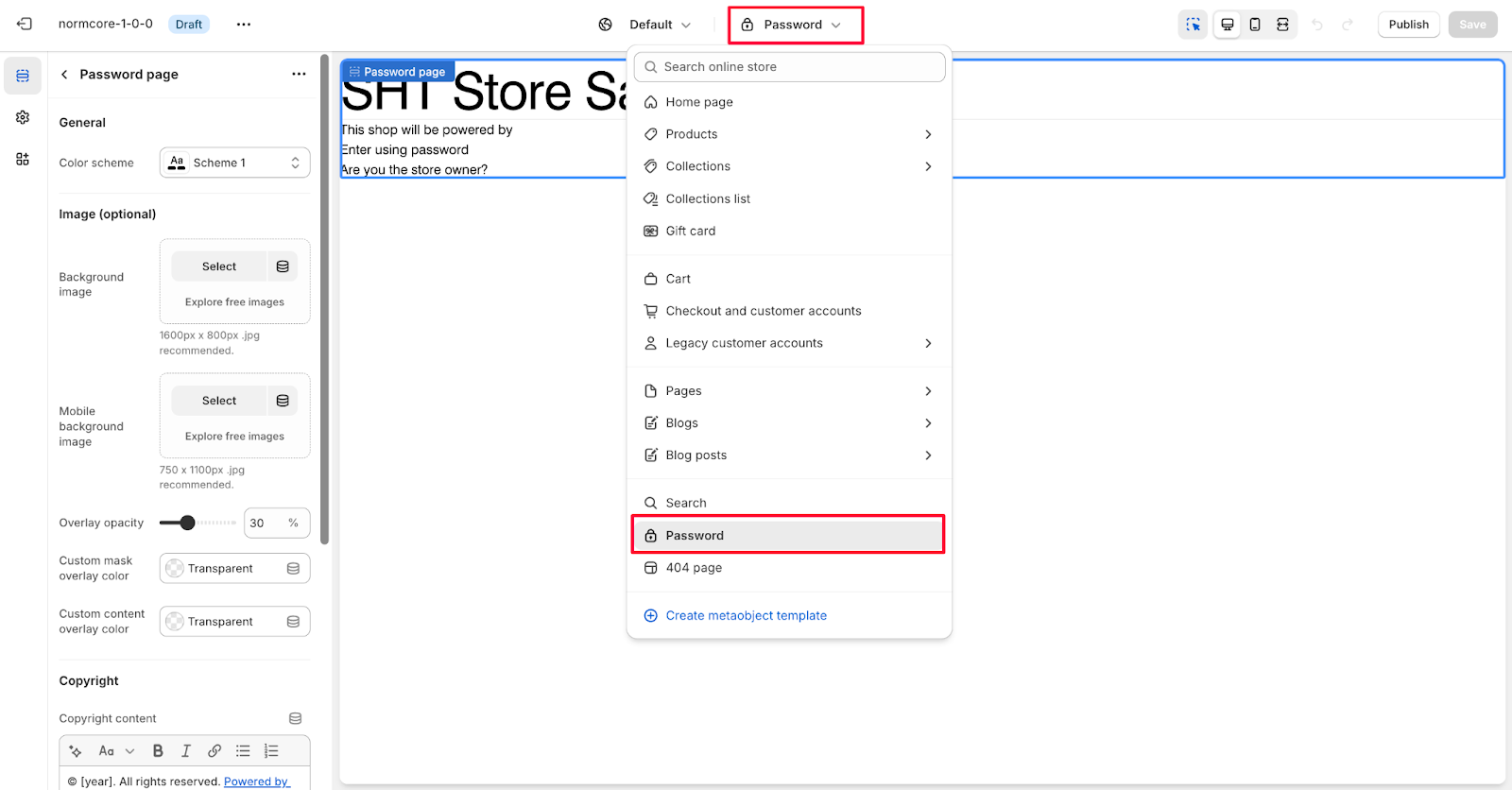
Access the Password template from the top center bar of your Normcore Admin Dashboard. Once selected, you can customize its appearance and functionality using the available settings.
How To Configure Password Template
Basic Components
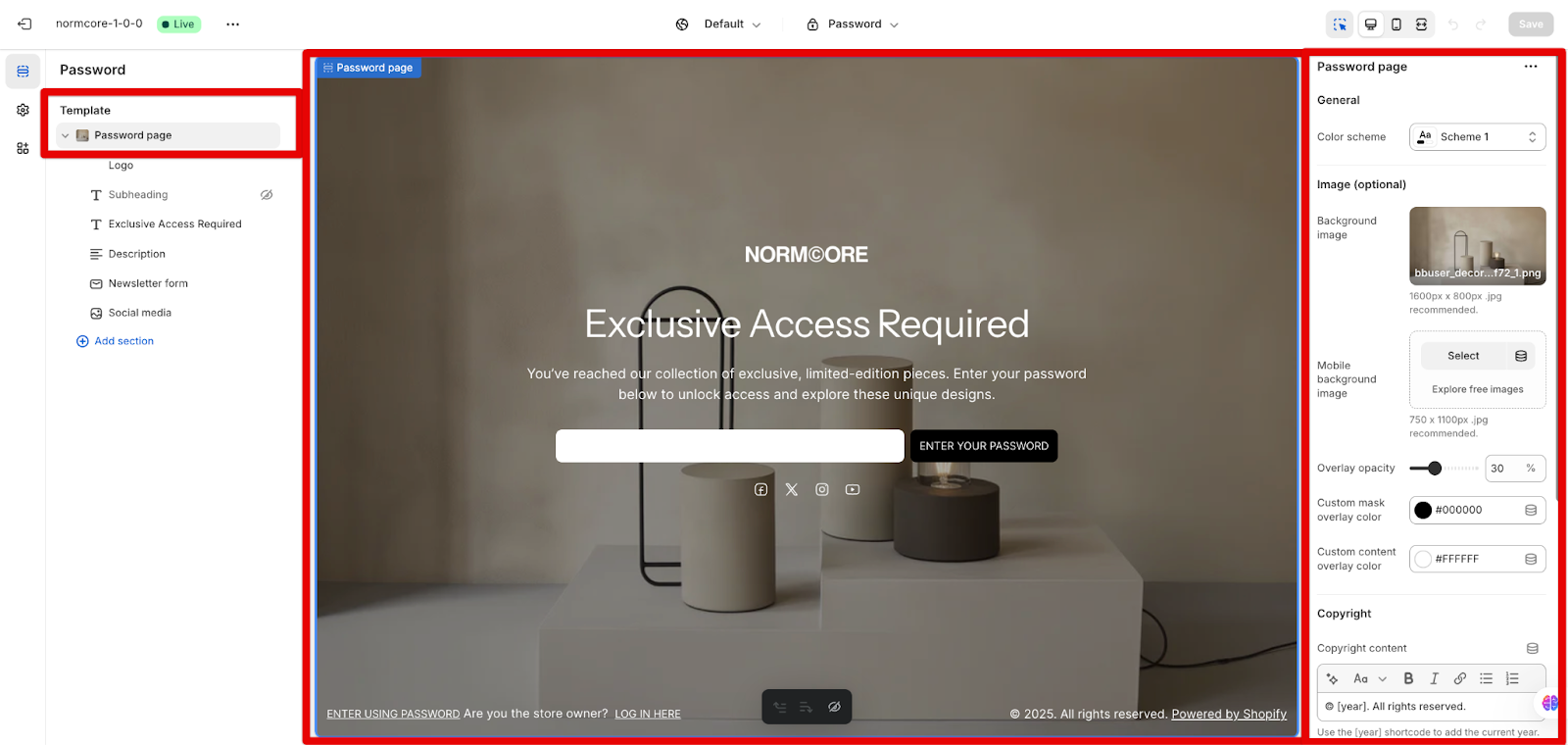
The Password template includes several customizable components:
Logo
Subheading
Heading
Description
Newsletter form
Social media
To begin customizing, navigate to the Password page settings in your theme editor.
General Settings
Within General settings, you can configure color scheme – Select from predefined schemes
Image
For Image settings, you can customize:
Background image (optional) – Upload or select from free images
Mobile background image – Upload or select from free images
Overlay opacity – Adjust transparency
Custom mask overlay color – Set custom transparent or colored overlay
Custom content overlay color – Configure content background transparency
Copyright Section
Configure the Copyright content by adding your copyright text.
Layout Controls
Customize the layout for both desktop and mobile views:
Desktop layout:
Banner width
Content alignment
Mobile layout:
Content alignment
Common Cases and FAQs
1. How to effectively use the Password template for a store launch?
Create anticipation for your store launch by customizing the Password page with your brand colors using the Color scheme option. Add a compelling background image and adjust the overlay opacity to ensure text readability. Use the [year] shortcode in your copyright content to keep the date current automatically.
2. How do I add password protection to my Shopify store?
You can follow these steps to enable the store password:
From your Shopify admin, go to Online Store > Preferences.
In the Password protection section, check Restrict access to visitors with the password.
Enter a password in the Password field (avoid using your admin login password). Optionally, add a message for visitors in the Message to your visitors field and Restrict access to B2B customers only.
Click Save
3. How to ensure the best background image quality?
Follow these recommended image specifications:
Desktop: Use 1600px x 800px .jpg format
Mobile: Use 750 x 1100px .jpg format
Utilize the "Explore free images" option if you need high-quality stock images
4. How do I disable the password page?
From your Shopify admin, go to Online Store > Preferences. In the Password protection section, uncheck “Restrict access to visitors with the password” and Save.