About Normcore 404 Template
The Normcore 404 template is a crucial component of your online store that helps manage user experience when visitors encounter broken or missing pages. It's designed to:
Maintain professional brand presence even when errors occur
Guide visitors back to working pages
Reduce bounce rates from broken links
Enhance user experience during navigation errors
Support SEO best practices for error handling
The template offers full customization capabilities for both desktop and mobile displays, ensuring a consistent brand experience even when visitors encounter missing pages.

How to Access 404 Template
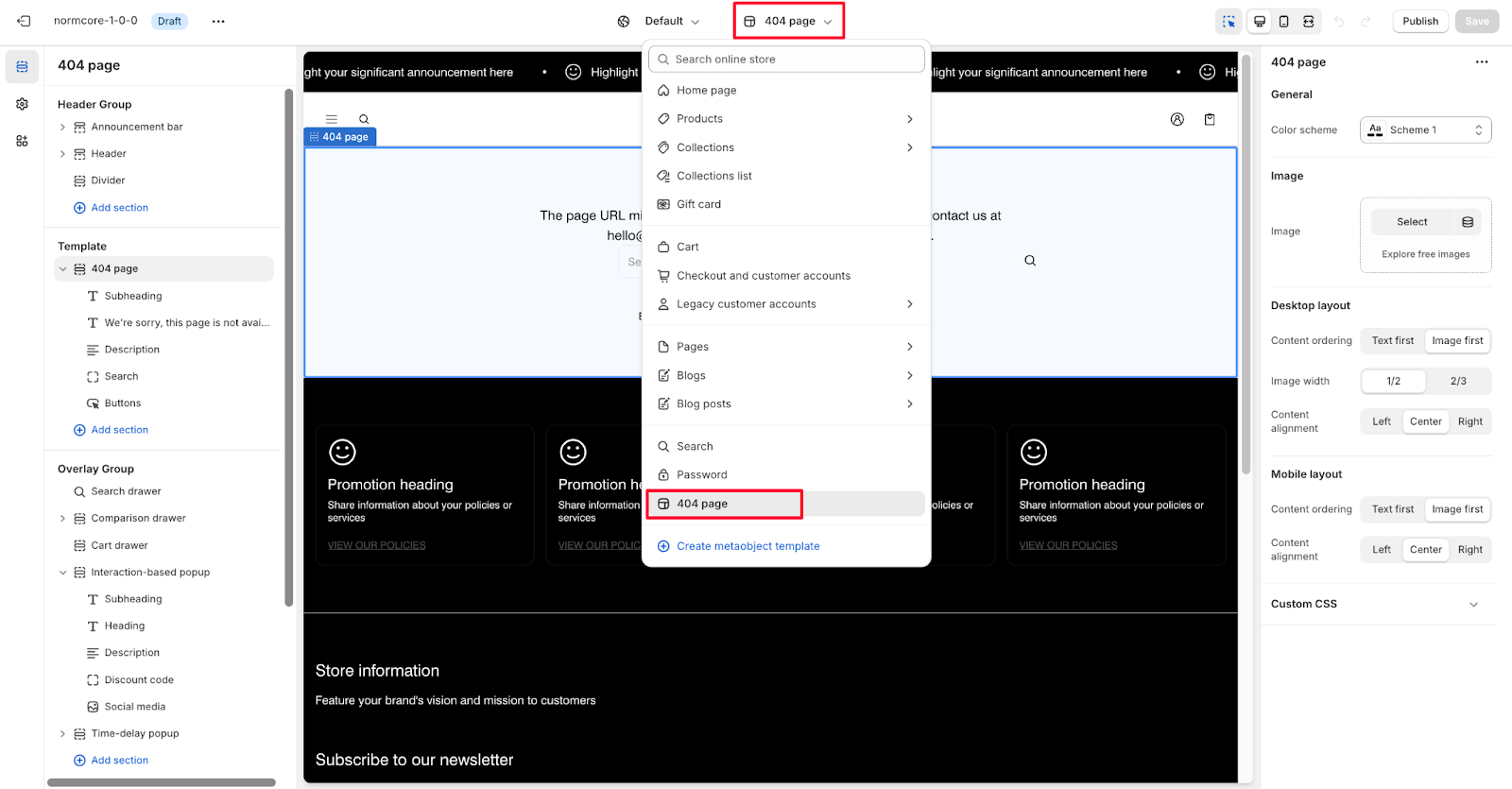
Access the 404 template from the top center bar in your Normcore Admin Dashboard. Once selected, you can customize its appearance and functionality through the available settings.
How To Configure 404 Template
Basic Components
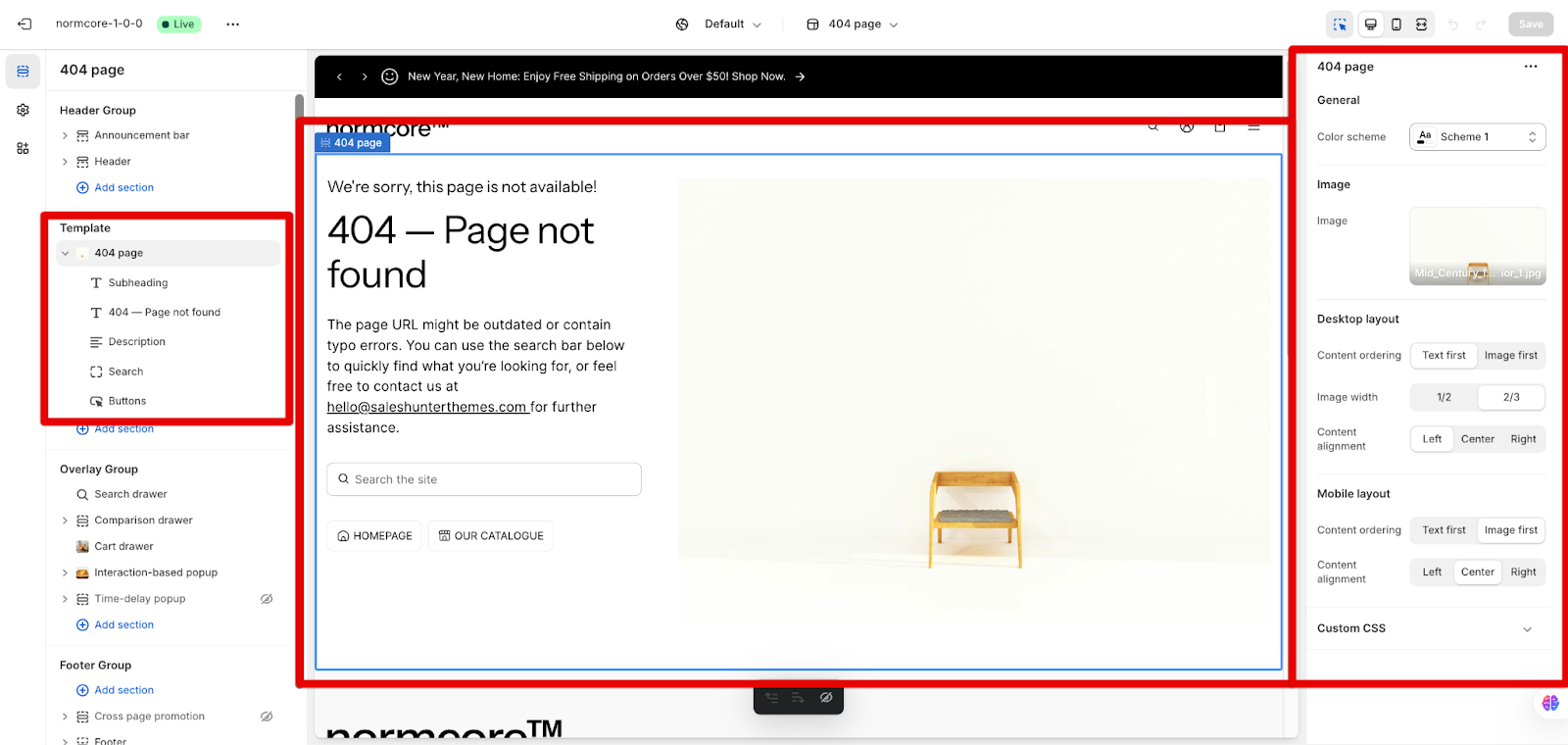
The 404 template includes several customizable elements:
Subheading
Heading
Description
Search
Buttons
To begin customizing, navigate to the 404 page settings in your theme editor.
General Setting
Within General setting, you can configure the Color scheme.
Image
With Image settings, you can select images from your computer or explore free images provided by Burst – Shopify.
Desktop Layout
Configure the desktop view with these options:
Content ordering
Image width
Content alignment
Mobile Layout
Customize the mobile experience with:
Content ordering
Content alignment
Common Cases and FAQs
1. How to create an effective 404 page that keeps visitors engaged?
You can optimize your 404 page by:
Setting appropriate content ordering (Text first) to immediately explain the error
Adding a branded image that matches your store's style
Using the color scheme option to maintain brand consistency
Ensuring content alignment guides visitors' attention to important elements
2. How to optimize the 404 page for different screen sizes?
The template allows independent configuration for both desktop and mobile layouts:
Desktop: Choose between 1/2 or 2/3 image width for optimal visual balance
Mobile: Adjust content ordering to prioritize essential information
Both views: Set appropriate content alignment (Left, Center, Right) based on your design needs
3. When should I use different content ordering options?
Choose your content ordering based on your goals:
Text first: Prioritize when you want to immediately explain the error and provide navigation options
Image first: Use when your visual content helps maintain brand engagement or includes directional elements