About Normcore Cart Drawer Section
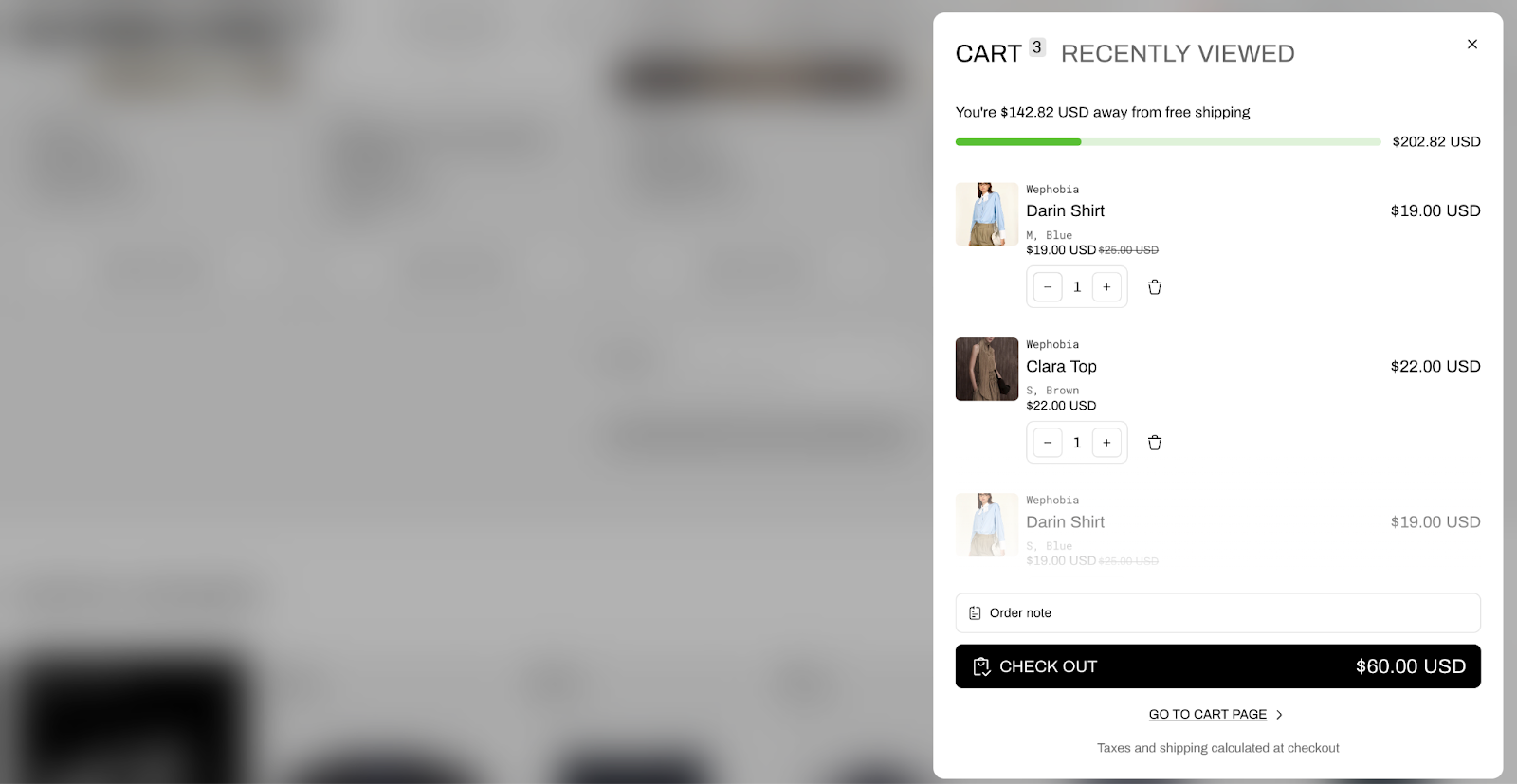
The Normcore Cart Drawer section is essential for enhancing your store's shopping experience. It offers a seamless overlay displaying cart contents, keeping customers on their current page. This section is perfect for:
Quick cart review and modifications
Seamless checkout process
Cross-selling through product recommendations
Encouraging additional purchases
Boosting conversion rates with recently viewed products
The section stands out for its ability to combine essential cart functionality with promotional features while maintaining a smooth shopping experience for your customers.
How to Access Cart Drawer Section
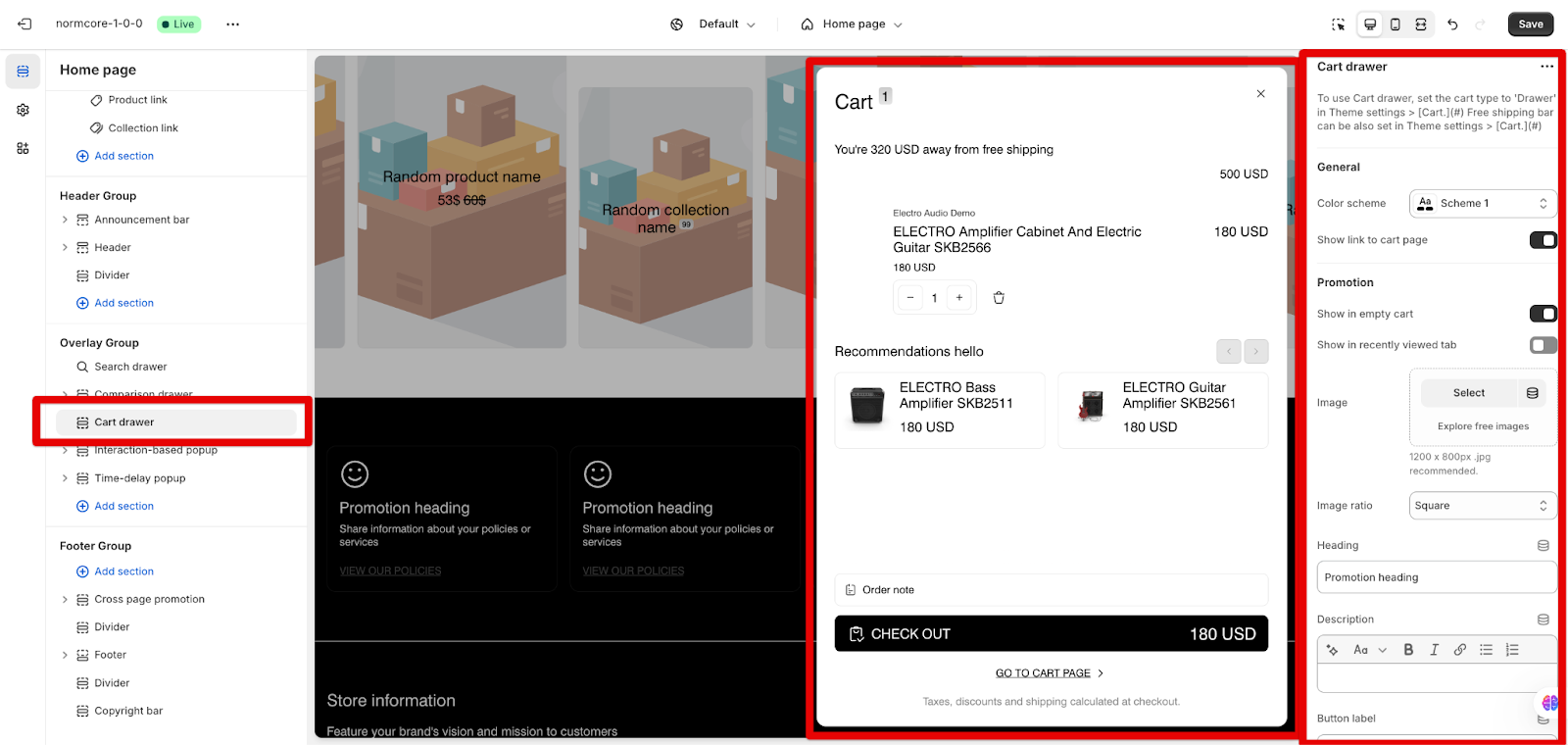
To activate the Cart Drawer, navigate to the Overlay group, and click on the “Cart drawer”. Then, you can customize its appearance and functionality using the available options.
How to Configure Cart Drawer Section
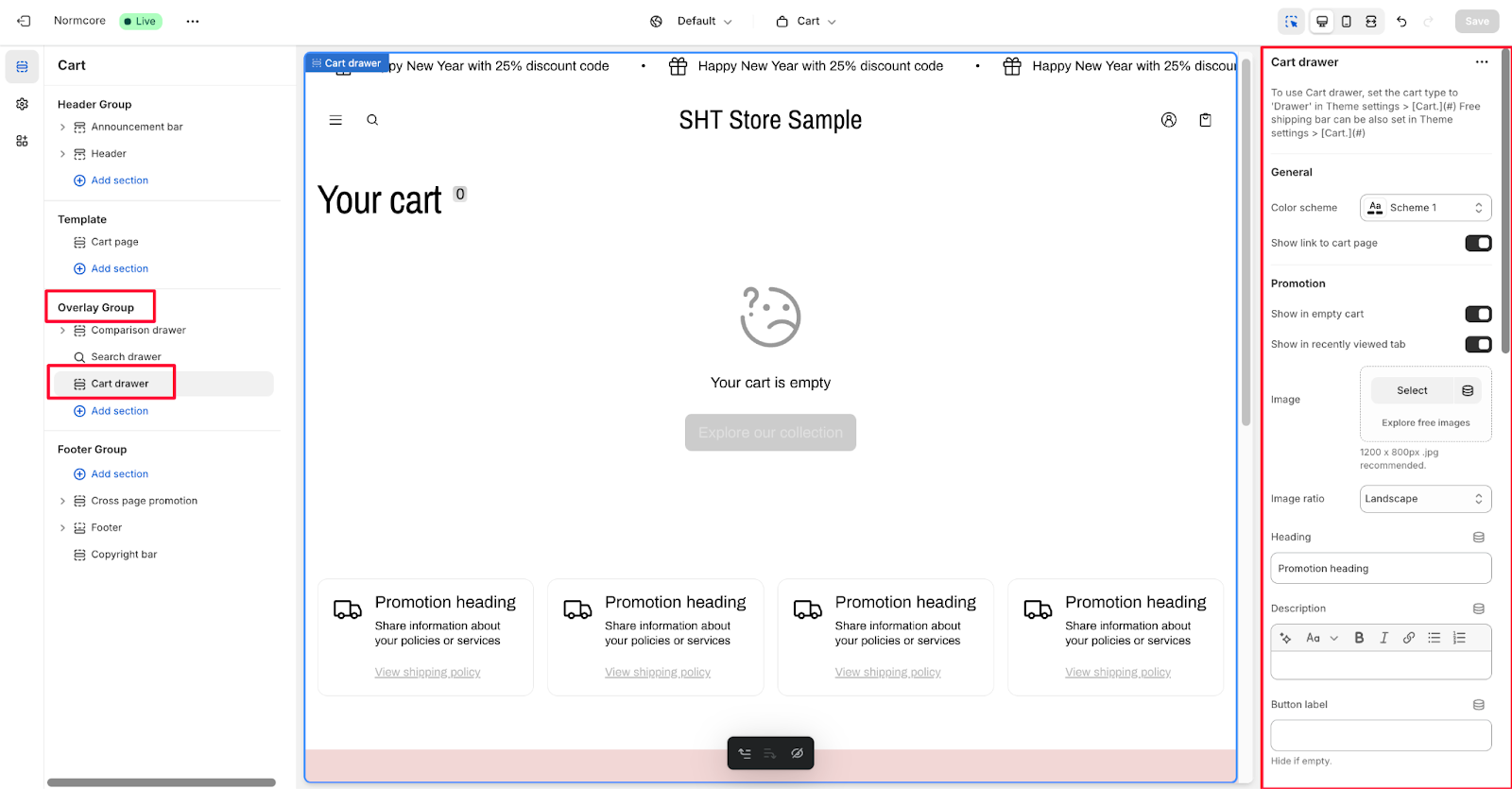
All configurations are done within the section settings for the Cart Drawer section, with no blocks inside:
General
Color scheme selection
Show link to cart page option
Promotion
The promotion section allows you to show promotions in an empty cart
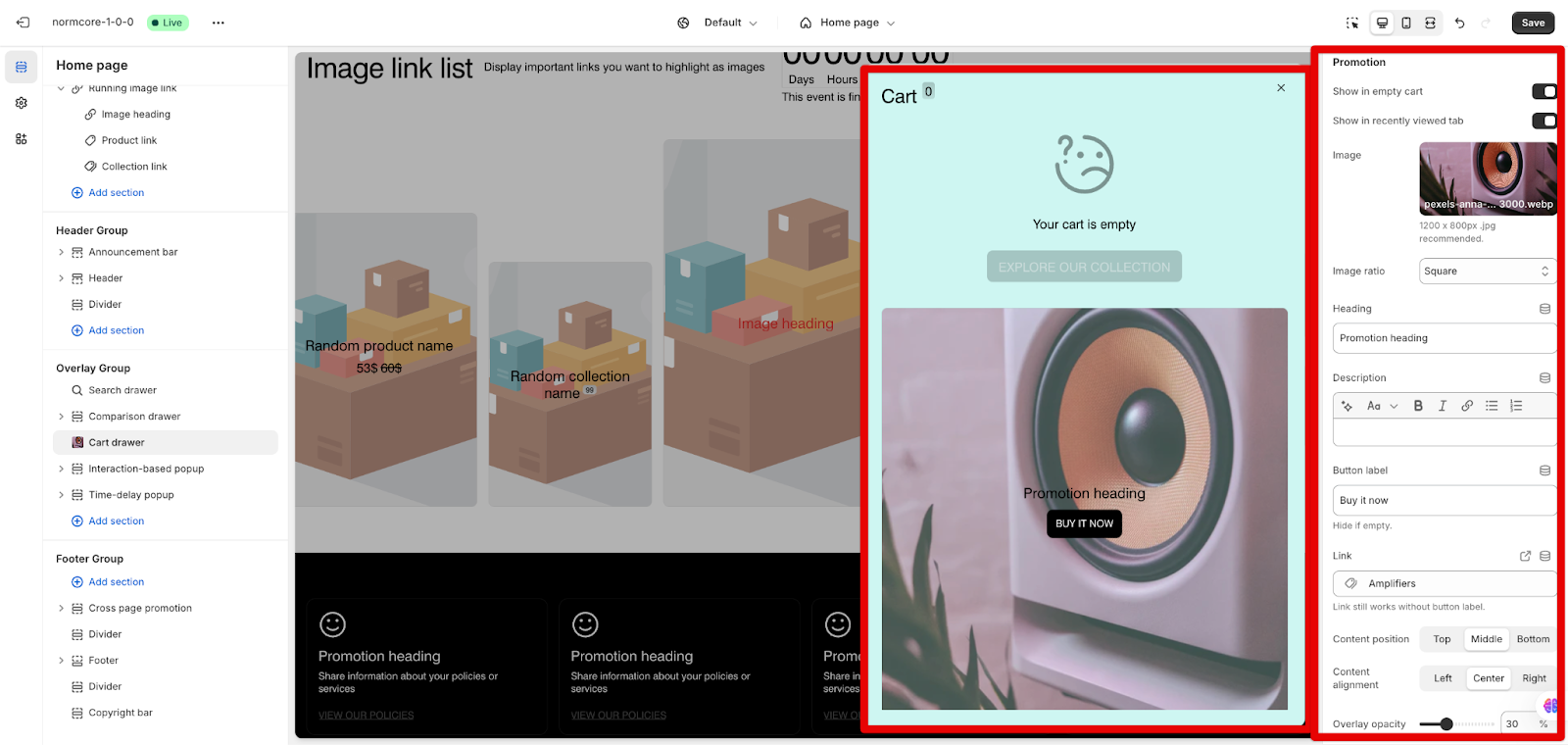
Important note: The promotions only appear when your cart is empty
Show promotions in the recently viewed tab
Include promotional images (recommended size: 1200 x 800px, .jpg format)
Set image ratio
Customize heading and description
Add button label and link
Position content
Align content
Adjust overlay opacity
Customize mask and content overlay colors
Complementary Products
This section displays product recommendations based on the items in the cart. It appears only when products are added to the cart, suggesting complementary items for purchase.
Configure product recommendations with these settings:
Heading customization
Maximum products to show
Show vendor option
Show rating option (configure in Theme settings > Product information)
Star rating color selection
Show price option
The Complementary Products section uses the products in the cart to dynamically recommend related or complementary items. This is different from the Recently Viewed Products section, which displays a history of products the customer has previously browsed, regardless of their cart status.
Recently Viewed Products
Customize the recently viewed products section:
Enable/disable recently viewed products feature. When enabled, the cart drawer will show a section with products the customer has recently viewed on the website. It’s similar to the Recently viewed products working mechanism.
Set maximum products to show
Enable vendor display
Configure rating display
Customize star rating color
Theme Settings
To refine the cart drawer's appearance and functionality, you can go to Theme Settings > Cart. Please note that if you change the cart settings in Theme Settings, this will effect the whole store.
Common Issues & FAQs
1. How to maximize the impact of empty cart promotions?
When customers empty their cart or haven't added items yet, you can maximize this opportunity by:
Adding a compelling promotional image
Using a clear call-to-action heading
Setting an effective button label that directs to collections or featured products
Ensuring the content position and alignment match your store's design
2. Why isn't my recently viewed products tab showing?
The recently viewed products tab might not appear if:
The feature isn't enabled in the Cart drawer settings
The customer hasn't viewed any products in their current session
3. Can I show promotion information and a complementary list at the same time?
No, these features work exclusively:
The promotion section only appears when the cart is empty
Complementary products only show when items are in the cart
Each serves a different purpose in the customer journey – promotions encourage first purchases while complementary products increase cart value
4. Can I use both complementary and recently viewed products?
Yes, both features can be enabled at the same time:
Each section can display up to 3 products
Configure display settings independently for each section