About Normcore Testimonials Section
The Normcore Testimonials section is a powerful tool for showcasing customer feedback and building trust with potential buyers. It enables you to display authentic customer reviews and ratings in an organized layout, ideal for:
Building credibility for your products
Highlighting customer satisfaction
Demonstrating social proof
Reinforcing brand reliability
Supporting purchase decisions
The section stands out for its ability to present customer testimonials in multiple layout options while maintaining full customization control for both desktop and mobile displays.
How to Access Testimonials Section
From any page in your Normcore Admin Dashboard, click the "Add section" button, search for "Testimonials" and select it.
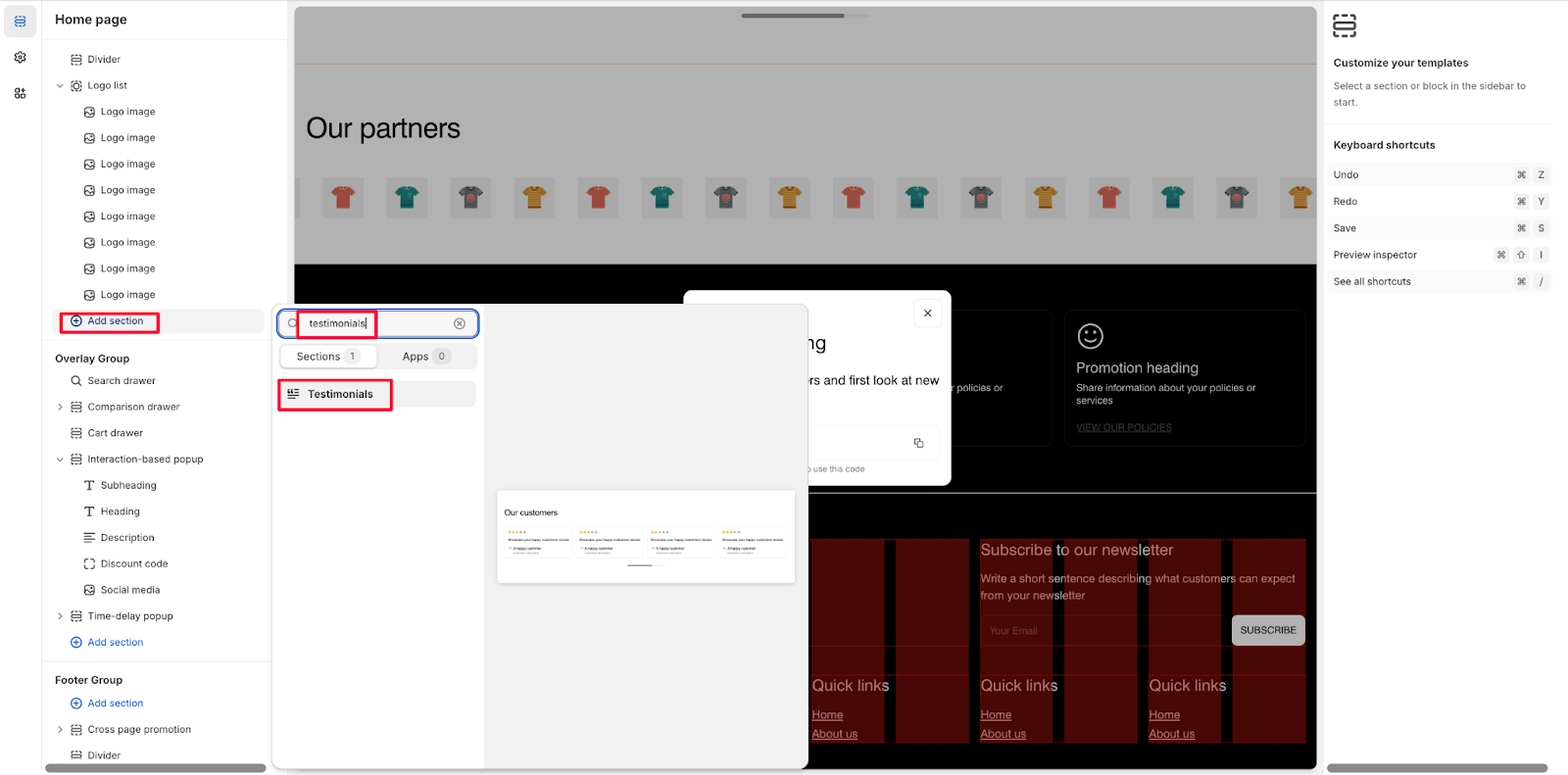
After adding the Testimonials section, customize its appearance and functionality using the available settings.
How to Configure Testimonials Section
The section includes many Testimonial blocks. You can choose "Add block" to add more "Testimonial" blocks to showcase additional customer reviews. To begin customizing, click the "Testimonials" section to access its settings.
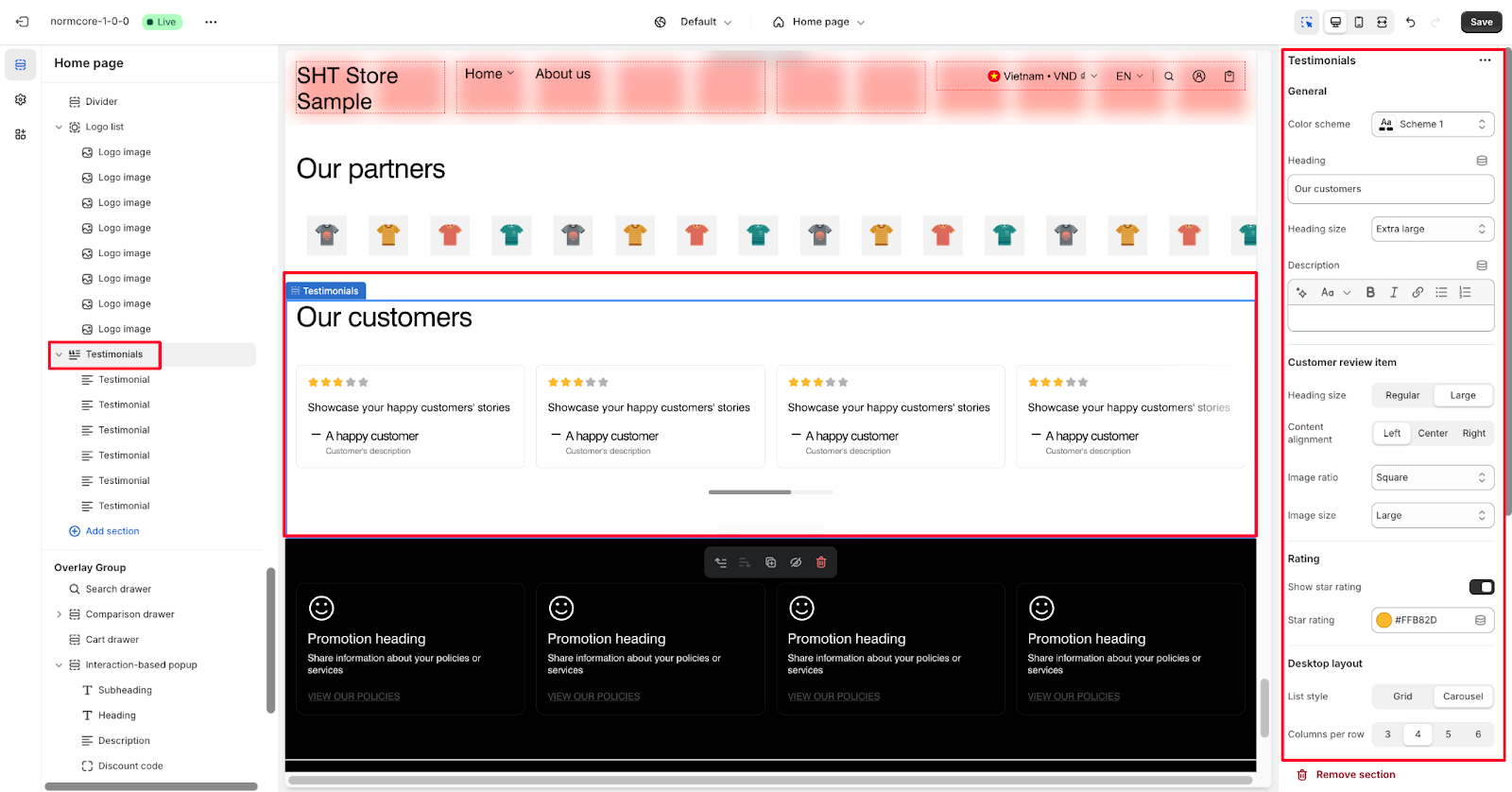
On the setting Testimonials section setting, there are some default components:
Heading
Description
Customer review items
Rating display
Button with link
Let’s explore how we can set it up as below:
General
Within General settings, you can:
Choose a color scheme from the available options
Set heading text
Customize heading size
Add description text using the rich text editor
Customer Review Item
For each testimonial, you can configure:
Heading size
Content alignment
Image ratio
Image size
Rating
Customize the rating display with:
Toggle star rating visibility
Star rating color customization
Desktop Layout
Control the desktop presentation with:
List style options
Columns per row
Mobile Layout
Customize mobile display with the list style options.
Button
You can place a button on the top right of the section by adding the button’s label and link here.
How to Configure Testimonials Section's Block
Each testimonial block in your section can be customized with these components:
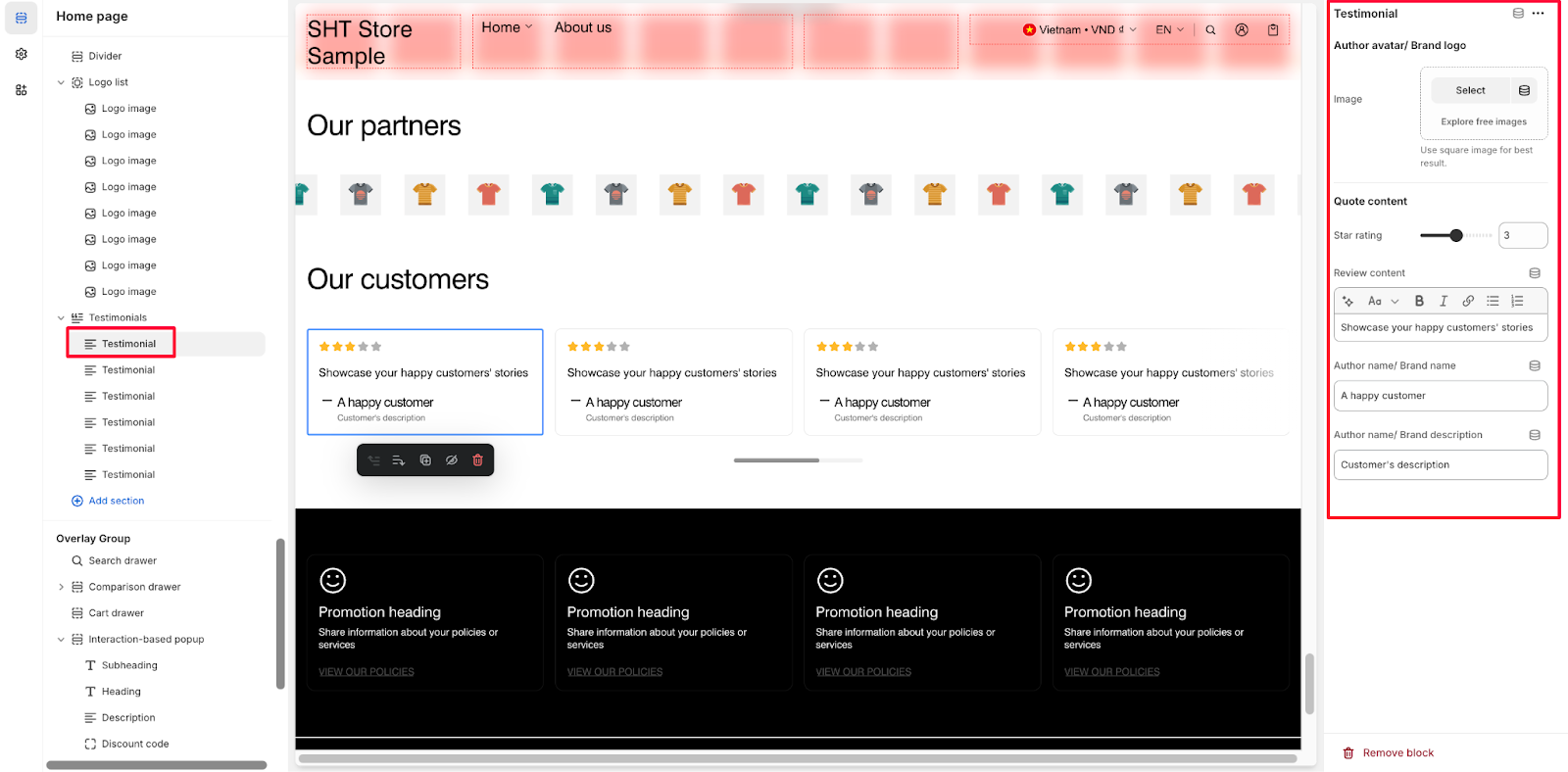
Author Avatar/Brand Logo
Upload an image by clicking "Select"
Or choose one from the option to "Explore free images"
Note: Use a square image for the best result
Quote Content
Configure the following elements for each testimonial:
Star rating (Adjustable from 0-5 with sliding scale)
Review content (Rich text editor available for formatting)
Author name/Brand name
Author name/Brand description
Common Cases and FAQs
1. How to make testimonials more credible and engaging?
When displaying testimonials, use customer photos or company logos as author avatars whenever possible. Square images work best for consistent presentation. Add detailed brand/author descriptions to provide context and build trust with potential buyers.
2. How can I optimize testimonials for different screen sizes?
You can independently configure the desktop and mobile layouts:
Desktop: Choose between Grid or Carousel layout with 3-6 columns per row
Mobile: Select Grid or Carousel view for optimal mobile presentation Ensure your layout choice matches your content volume and desired user experience.
3. How do I customize the carousel display?
When using the carousel layout, you can:
Set "Single item" for Carousel Slide Per Click to help customers focus on one testimonial at a time
Enable "Multiple Items" if you want customers to explore more testimonials at once
Toggle the progress indicator to help customers track their position in the carousel