About Vertical Menu Block
The Vertical Menu block is a versatile navigation tool that helps organize and display your store's menu items in a vertical format. It's particularly beneficial for:
Complex product catalogs with multiple categories
B2B stores with extensive product lines
Category-focused navigation
Specialized product collections
Multi-level menu structures
The block stands out for its ability to provide clear hierarchical navigation while maintaining full customization control for both desktop and mobile displays.
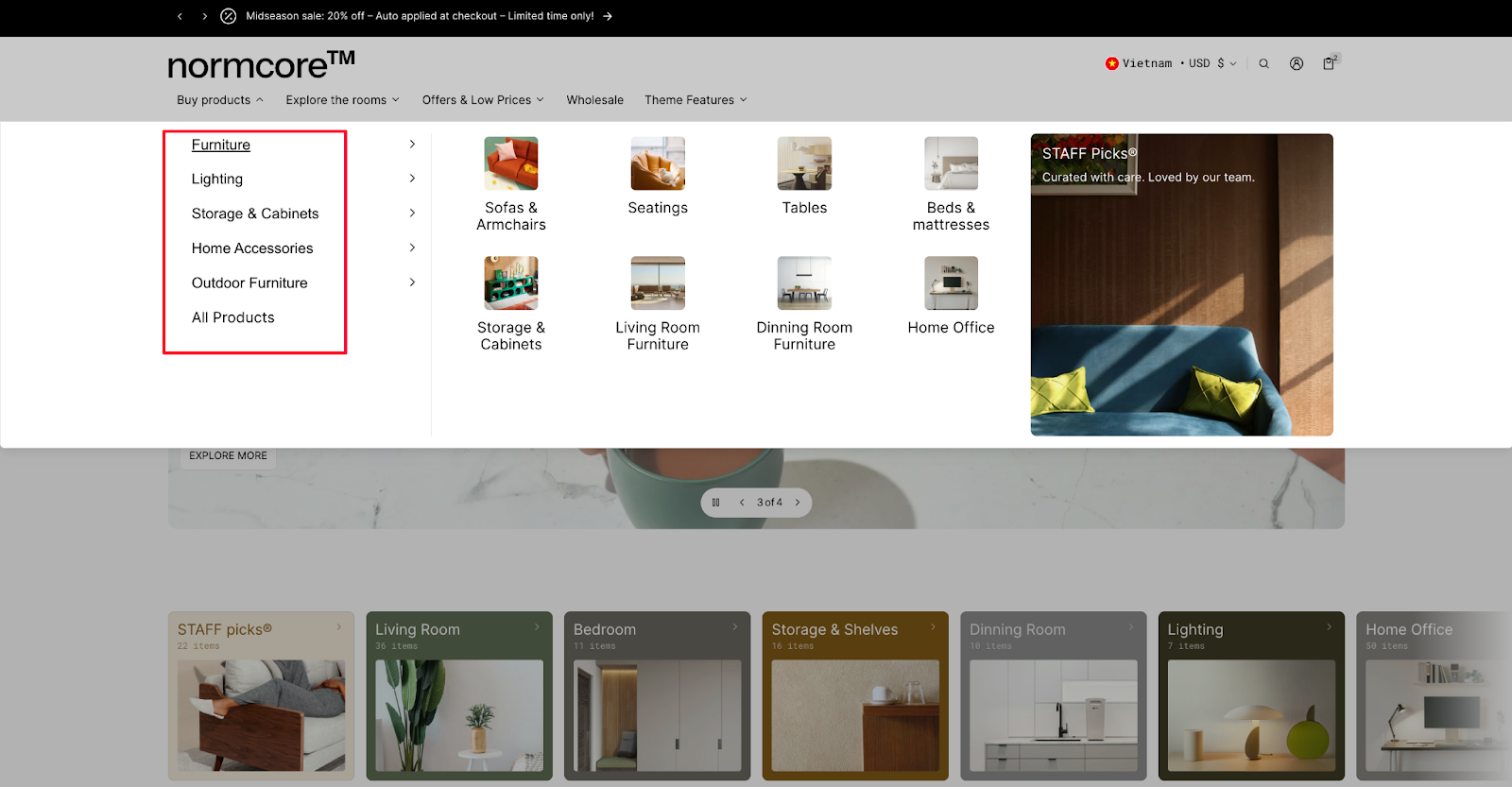
How to Access the Vertical Menu in Normcore
From your Normcore Admin Dashboard, Access Header section > click the "Add Block" button, search for "Vertical menu" and select it from the Blocks category.
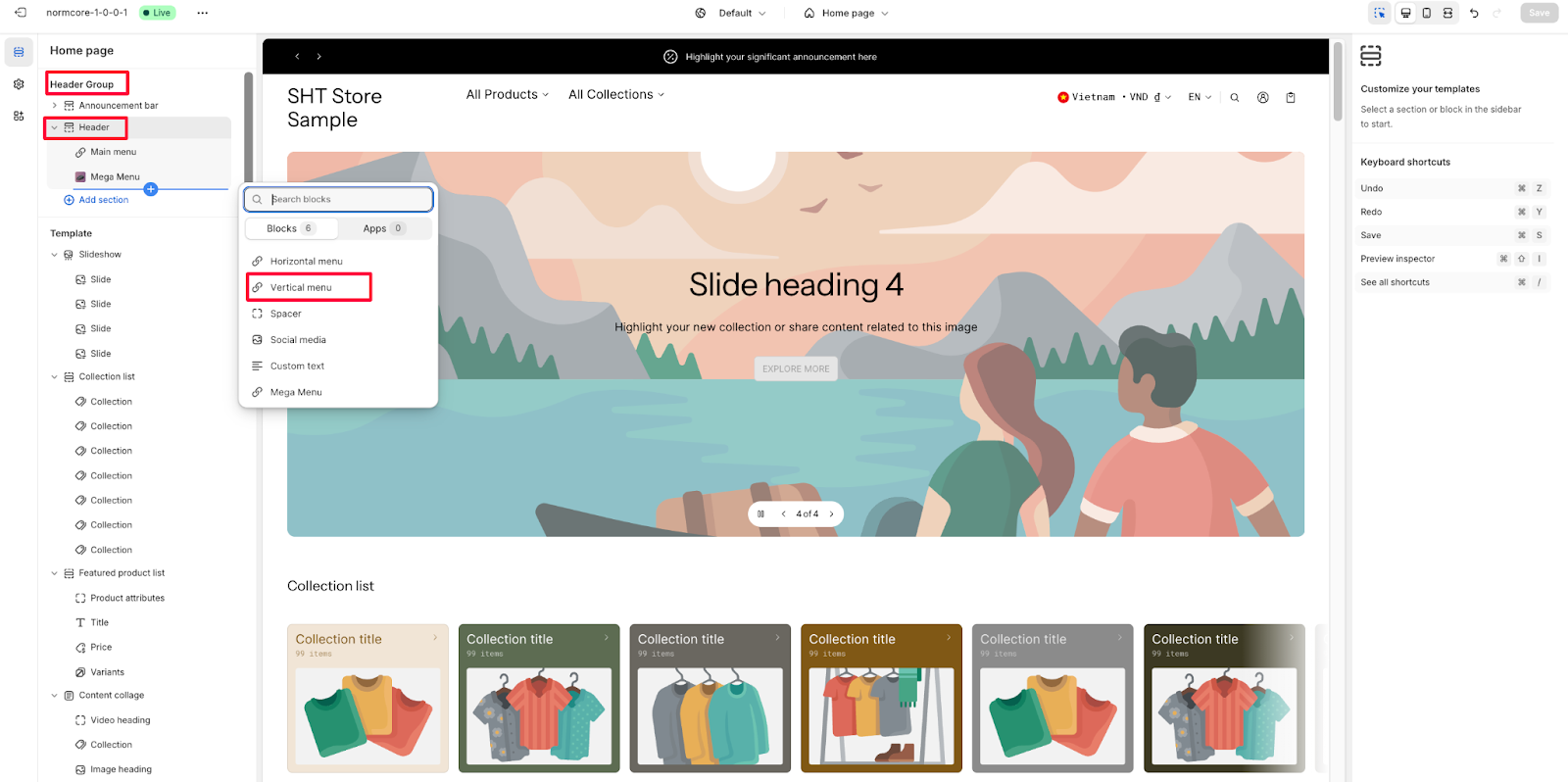
After adding the Vertical Menu block, you can customize its appearance and functionality through the available settings in the sidebar.
Basic Components
Each Vertical Menu block includes the following components:
Menu selection
Text size options
Block width settings
Block alignment controls
Mobile display settings
To begin customizing, click the "Vertical menu" block to access its settings.
General
Within General settings, you can configure:
Menu: Choose your preferred menu from the dropdown
Text size: Select between Regular and Small options
Desktop Layout
For desktop view, you can adjust:
Block width: Choose from 4 cols (1/3) and other width options
Block alignment: Set to Left, Center, or Right to align content within block width
Mobile Layout
For mobile devices, you can:
Show in menu drawer: Toggle the visibility of the menu in the mobile menu drawer
The mobile layout inherits other settings from the desktop configuration while optimizing for smaller screens.
Common Cases & FAQs
1. How can I create a multi-level menu structure?
In the Normcore theme, you can create hierarchical menus by:
Setting up parent categories as top-level items
Adding subcategories as child items
Organizing products within appropriate subcategories
2. What's the best practice for menu organization in B2B stores?
For B2B stores, we recommend:
Grouping products by industry or application
Using clear, professional category names
Limiting menu depth to 3 levels for optimal navigation
Including important B2B-specific categories like bulk ordering or customer support
3. How to optimize the vertical menu for mobile users?
To ensure the best mobile experience:
Enable the "Show in menu drawer" option for easy access
Use concise category names that fit mobile screens
Test navigation flow on various mobile devices
Consider using the Small text size option for better readability