About Heading H1 Tag
The Heading H1 Tag is a crucial SEO element that helps search engines understand your page's main topic. In the Normcore theme, you can flexibly configure H1 tags on any page template to:
Improve your store's search engine visibility
Structure your content hierarchy effectively
Maintain consistent heading styles across pages
Enhance accessibility for screen readers
Support your SEO optimization efforts
The H1 tag feature stands out for its ability to be customized across different templates while maintaining proper HTML semantic structure.
How to Configure Heading H1 Tag
For heading 1, please remember that a page should only have one H1 tag. Here is how Normcore supports heading H1 tag for better SEO:
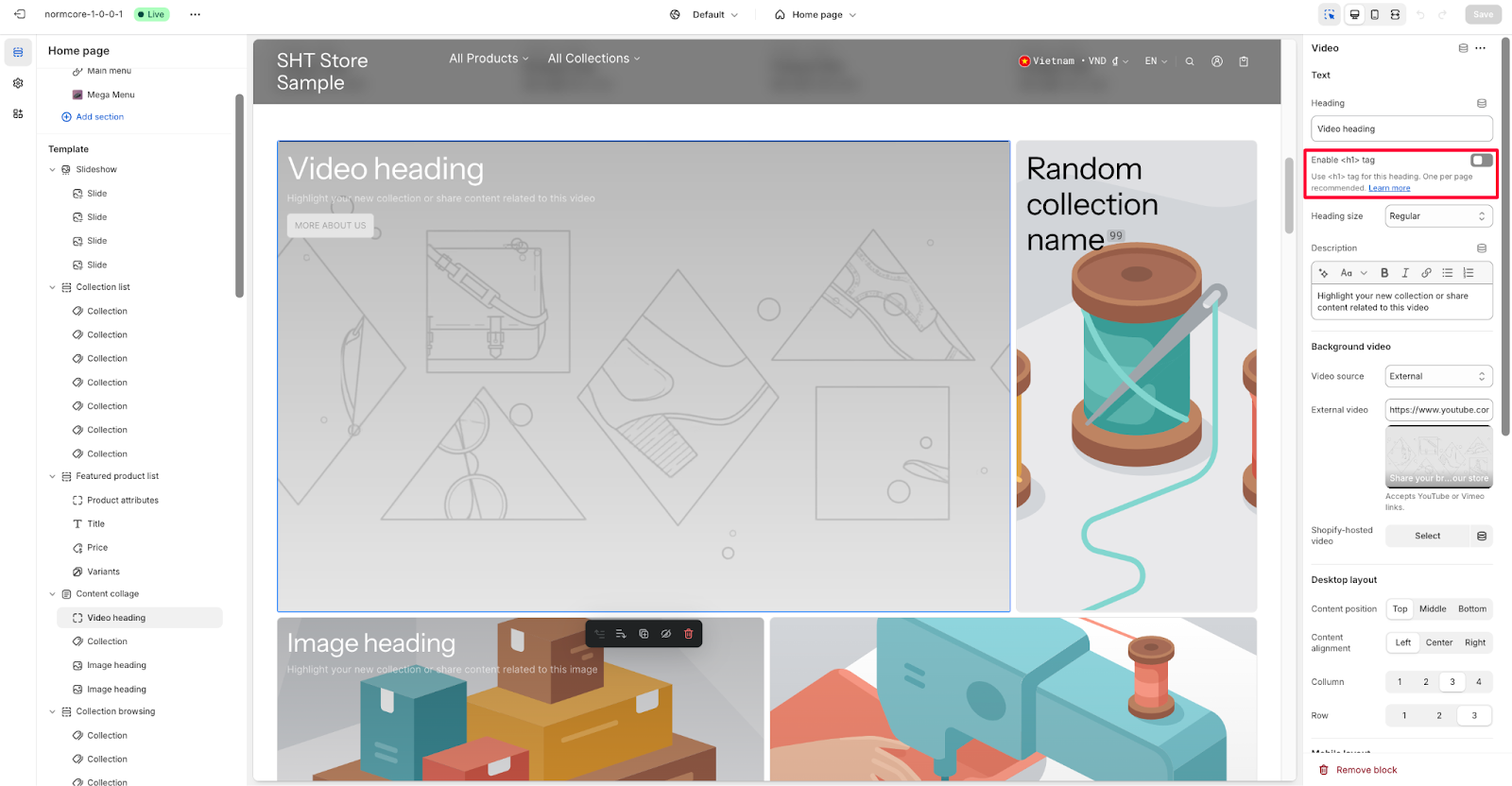
Homepage: The logo header has enabled the h1 tag for the logo to optimize SEO, but it can be turned off if you want to leave the h1 tag in other sections (promotional sections can attach the H1 tag to their heading thanks to settings)
Product page: The H1 tag in product details also has the option to enable/disable in the product title block depending on whether you want to SEO the product name or something else in another section
Collections: There are 2 basic ways to create a collection page that Normcore supports, which are Collection banner + Product grid. You should enable h1 tag in the Title block in the Collection banner (Only use product grid)
Blog post: This is similar to the Collection settings above with 2 sections Blog post banner and Blog post details
Page: You can turn on/off the h1 tag here (mostly people should turn it off because no one uses this section)
Common Cases and FAQs
1. How many H1 tags should I use per page?
Best practice is to use only one H1 tag per page.
2. Why isn't my H1 tag showing in search results?
When your H1 tag doesn't appear in search results, check these common issues:
Ensure the H1 tag is enabled in your template settings
Verify the heading text is properly saved
Check if the mobile display settings are correctly configured
3. Can I have different H1 tags for mobile and desktop?
While the content remains the same, you can adjust the styling of your H1 tag for different devices:
Font size can be optimized for mobile
Alignment can be changed
Spacing can be adjusted